
4.1Document types
A document type defines the purpose of documents of this type and also the number and types of input fields that are needed. A user with administration privileges can change them while the system is running.
A document type has a view name, a database name and an ID. Each field of the document type has a view name, a database field name and a field type.
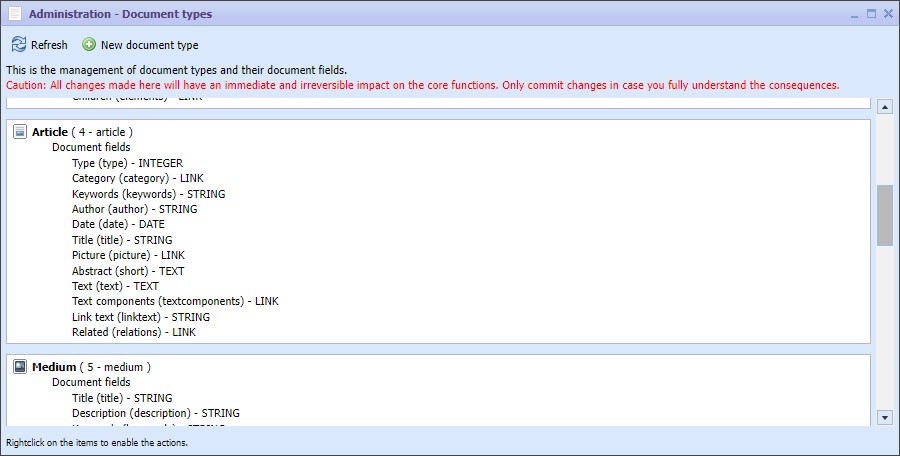
Administration of the document types
The technical terms to organize the document types are the following:
- A new document type must have a unique view and database name. The ID of a new document type is generated automatically. It is important that the database name is always written in small letters or numbers without any special characters and also no dash.
- Changing a document type means that view name and database name can be modified as long as they are still unique within the document type. The ID of a document type cannot be changed.
- If a document type should be deleted it is important that no more documents from this type exist in the CMS.
- Document fields can be added, deleted or changed within document types at any time.
- Deleting a field in a document type means that the contents of this fields will remain in all existing documents. The field is not shown in the document window any more and it also is not available for editing. Creating a new field using the same database name and the same type will restore/reshow the contents of the documents in this field.
- The effect of changing the database name of a field or the field type is comparable with the action delete and create a new field.
The effect of the change from the document types occur immediately. Other users also see the change immediately, it even influences the generation of contents. If, for example, the title field of an article is deleted, the generator can not generate the article page for the web portal anymore thus resulting in an error by accessing the field from the generator asking for it.
Document types can be changed with the following actions:
 | New document type | In the taskbar | |
 | Edit a document type | In the context menu for the document type | |
 | Delete a document type | In the context menu for the document type |
Actions for document types
For changing or creating a document type this dialog appears:
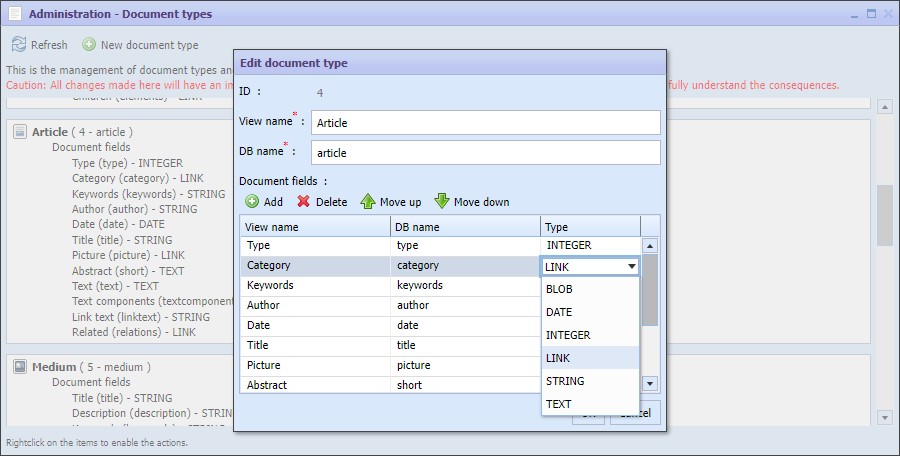
Dialog to change a document type
In the table for the document fields the names can be changed directly in the cells. Double clicking on a field type opens the dropdown with the list of types. For adding or deleting fields the context menu or icons in the toolbar can be used.
The order of the fields defines the order in the document windows. Use the context menu, the toolbar buttons or the shortcuts Ctrl+Up respectively Ctrl+Down to move the fields in the list.
The field types define the content types of the input and the input capabilities.
| field type | Applications |
| Blob | Field to upload files |
| Date | Date |
| Integer | Number, Checkbox, Dropdown |
| Link | List of links, category selection |
| String | Single-line text, Combobox |
| Text | Richtext, Grid |
In the administration of the cmsWorks desktop the input field types can be modified for any field of any document type. For example a number field can be converted into a checkbox which saves 1 as checked and 0 or empty as not checked or into a dropdown for type entries.
The view names of document types and fields will appear in the desktop mostly but also within the preview if an error view tells what field is needed and not filled yet. Those names can be translated to the uses language settings if there's a need for that.