
2.2Document window
A document is based on a document type that defines the purpose of the document and comes with a set of input fields where the content is stored.
For instance an article document contains a field for the article text but a slideshow document needs also a field listing the pictures of that very slideshow.
When creating a new document in a folder, the document has to have a unique name and, at first, the document type has to be selected first. In case a document was created this way the document type cannot be altered afterwards. Every document gets a unique cmsWorks-ID.
With the action Open document by right-clicking on it (or doubleclicking on the document) the document window appears showing the toolbar with document actions, a document information block and the field contents of the document.
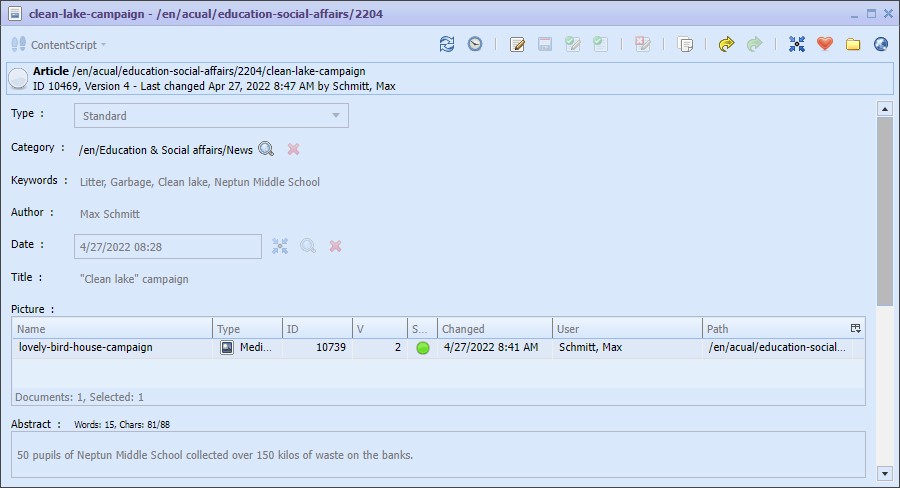
A document window of document type article where the document is in state "Edited". The input fields are read only.
The document info block contains:
- An icon showing the state of the document
- The document type name
- The path of the document
- The document ID
- The latest version number
- The user name and timestamp of the last document change
With a doubleclick on the the document info line or pressing Alt + I an input dialog opens containing type, id and path of the document. This info is easy to copy and may be used for communitcation (i.e. in mails) about this document. A doubleclick on the document id opens the input dialog with the selected id only for easy copying.
The following actions can be executed from the icons of the toolbar on the top of the documents window:
 | Previous Versions | ||
 | Edit | ||
 | Ctrl+S | Save | |
 | Save and end editing | ||
 | Save, and editing and close the document window | ||
 | Abort editing | ||
 | Copy | ||
 | Approve | ||
 | Publish | ||
 | Linking documents | ||
 | Favor | ||
 | cmsExplorer | ||
 | Preview | ||
 | Refresh | ||
| F2 | Rename the document | ||
| Alt+I | Show document info dialog | ||
| ESC | Close the document window |
Icons and actions in the document window
Document states
Documents have different states depending if they are in
- Editing state (currently blocked by one user editing this document)
- Edited state (the content is changed and ready to be approved or to be edited again by any user)
- Approve (ready to be published even from other documents) or
- Publish (then seen to the world out there)
So the following states are applicable:
-
 - Published - An online generator uses this version of the document.
 -
 - Approved - The document is ready to be published.
 -
 - Edited - The document was changed but is still not approved for publication.
 -
 - Editing - A user is working on this document right now.
With the action
Edit the input elements of the documents are activated and the content can be changed. When starting the editing mode no other user is able to change this document because you have the exclusive control over this document now.
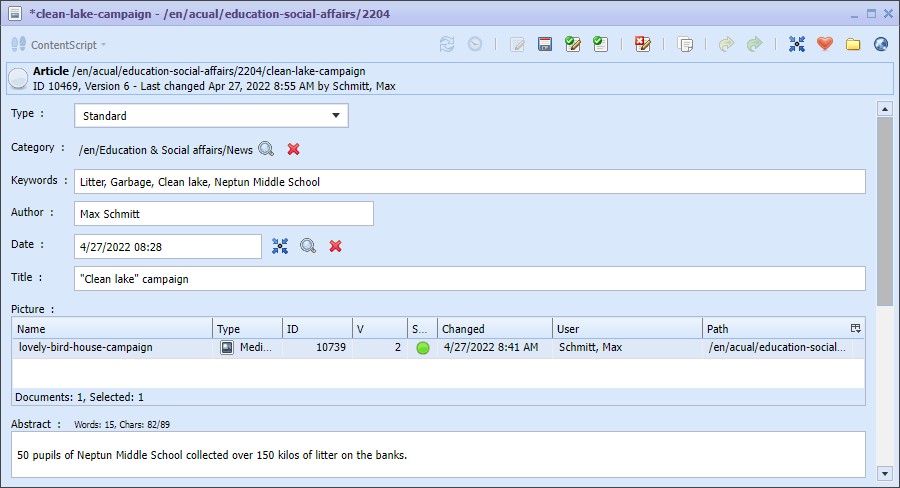
A document window of document type article is edited. Input fields are activated. The window title shows an additional "*" indicating the editing state as well.
Using the preview the progress of filling the content can be checked. Store your input hitting
and open the preview using
.
When the editing is done and the content is all fine store the content and remove the editing state with
Store and end editing. But if you want to discard your changes the action
Abort editing restores the version of the document that existed before entering the editing mode. It doesn't matter how many times the content was stored while editing. After ending the editor mode one way or another the document is no longer blocked and can be changed by other users again.
To indicate that the content of the document is ready to be published click on
Approve changing the documents state to approved. This state of documents is the necessary condition for a successful publication.

The document info block shows the state approved with the yellow icon.
The action
Publish changes the state of the document into published and enables an online generator to see and use this version of the document for the online website.
More details about the publication are described in the chapter Publication.

The document info block shows the state published with the green icon.
Versions
If a document is in the state approved or published and you are about to edit this document a new document version will be created. In the preview the current edited version is used but the online view just uses the latest published version of the document.
Before starting the editing mode the server creates a backup version. Aborting the editing means to restore the backup version with it`s state and version number.
With the action
 Delete latest version the current version will be deleted and the previous version is becoming the current one.
Old versions
cmsWorks enables the access to the version history within the document window.
Activating the button
Previous versions a new window opens showing the historic versions of this document.
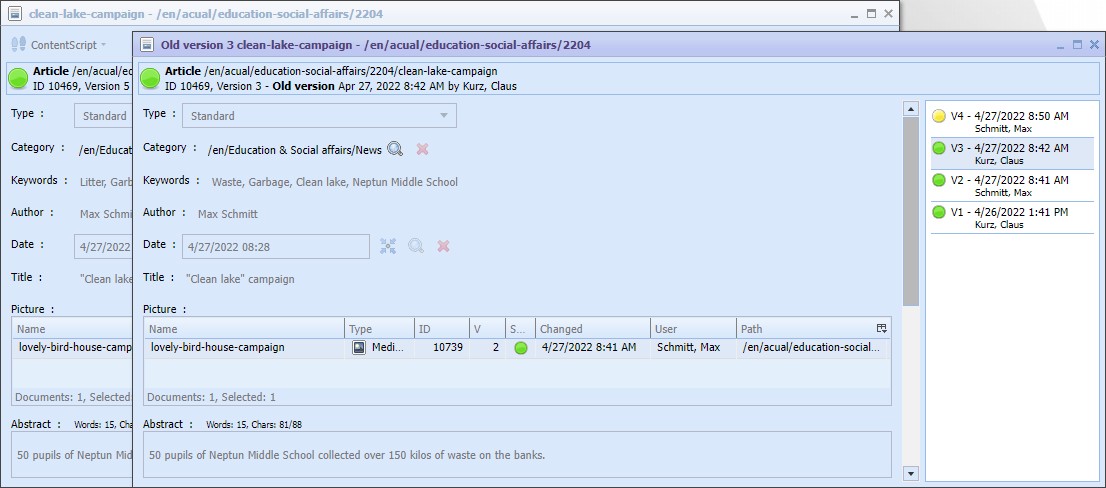
The old document versions of the document are presented in a new window to be able to compare the old content to the current.
With the version selection bar on the right the single version contents are shown on the left.
Folder path and document name combined with versions
The document path (folder) including its name is as unique as the document ID. If a document is moved or renamed all versions of the document are moved too and therefore affected. cmsWorks provides no history for this action for i.e. an undo. An old path or old name from an old version of a document is not retrievable.
Linking
Documents can contain internal links to other documents in input fields of type linklist or text. With the context menu there is always the possibility to open the linked document. Or in fields of type linklist just select the document and hit Enter.
You can also find documents having links to this document with the action
Linking documents.