
2.3.1Richtext
The input field richtext contains multi line text with markups. The text is stored in an XML format much alike HTML. Exceptions are links and text components stored in a pseudo format to be able to contain internal links to CMS documents.

Input field for formatted text
After focusing the input field the toolbar appears showing action buttons for text formatting and a word and character count.
The cmsWorks editors desktop uses the TinyMCE plugin. This enables a flexible configuration and a stable control about the produced markup text. Each richtext field of every document type can be configured individually. For example you may deactivate most features if you configure a field just for a description text that should be mostly unformatted but not restricted to 254 characters like the string input field.
The following actions are available:
 | Undo | Take the latest change back | |
 | Redo | redo the latest change of the text | |
 | Find and Replace | Find text and replace it with other text | |
 | Formats | Select from project specific text formats | |
 | Clear formatting | Clear all formats of the selection | |
 | Ctrl+B | Bold | Set or unset format bold |
 | Ctrl+I | Italic | Set or unset format italic |
 | Ctrl+U | Underline | Set or unset format underline |
 | Blockselect | Select from project specific block formats | |
 | Bullet list | ||
 | Numbered list | ||
 | Ctrl+K | Link add/edit | Edit a hyperlink |
 | Link delete | Delete a hyperlink | |
 | Table | Create and format a table | |
 | Toolbar-Toggle | Show and hide the toolbar |
Actions for richtext formatting
Click on the icon
to toggle the visibility of the toolbar.
The toolbar is visible

The toolbar is hidden
While typing, the word count, character count and the gross text content length is continuously updated.
Editing text should be as easy and comfortable in cmsWorks as using a normal desktop text editor. After a line break a new paragraph is created. The block formatting always targets the the blocks of the selection. Inline formatting works for the selected text or the current word the cursor is positioned in.
Block formats
To change a block format, i.e. to change a paragraph into a headline, you only need to place the cursor anywhere within the block and than choose from the block formats selection
.
Lists
List items are block formats. Place the cursor within the line and choose from the list types
or
. Selecting the list type again will remove the list item format.
Links
The link dialog for hyper links opens if text is selected after hitting
(or using the short key Ctrl+K) and enables to put an external URL starting with https://... as well as internal links to other documents. If the cursor is placed in a linked text the link dialog can be opened to see and change the link properties.
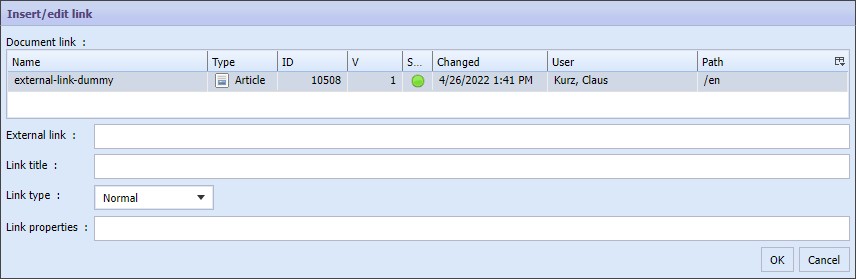
Link dialog for links within the text
In the link dialog either an external link is set in the field External link or an internal link to another document in the field Document link. Filling both will either raise an error or use the preferred linking method depending on the programming of the website.
When filling an external link which may be copied from a preview or the online portal of this project please note the the checkbox on top called "Force to replace the text link by internal document reference". In case it is checked cmsWorks is testing if any Generator service handles the path of this URL so this link is automatically transformed into an internal link after confirming the dialog.
Using the field Link title gives the link a title attribute that is useful for search engines describing the purpose of the link. The field Link type is filled by the projects demands. Maybe the link target should be opened in a new window not to leave the own page selecting the option "New window". If the project handles more properties for a link those can be added into the field Link properties. The customized project defines the format and purpose of those properties. By default adding a Hash like "#thehash" adds it to the created URL, defining a property data-myproperty="myPropertyValue" adds the property to the link tag.
Internally the link to another document is just stored with the document ID. If the linked document is moved or renamed the link is still stable and will be updated in the next generation of this text. Also the format of the link is depending on the product of the Generator. Different types of references will be created if the products of the Generators are different (i.e. websites, XML-Feeds, JSON-Feeds, PDFs) And with internal linking the documents create a relation. The document having the link cannot be published if the link target is not published yet. Also the link target cannot be deleted as long the the link exists.
To remove a link place the cursor into the linked text and hit
.
Table
With the action
a table can be created.
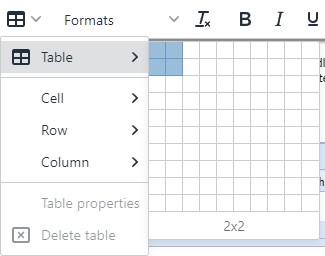
Create a table
The submenu of the action icon contains options to add or remove lines and rows and to edit properties of the table, the row or the current cell. These functions are basic unchanged TinyMCE functions. Some of the options will not work if the project settings will not allow them.
Use formats to set a layout for the entire table or for single rows or cells. Open the Formats dropdown and use the submenu Table to select a layout which was defined in the projects settings. Simply set the cursor into a cell and select a format targeting this cell, this row or the whole table.
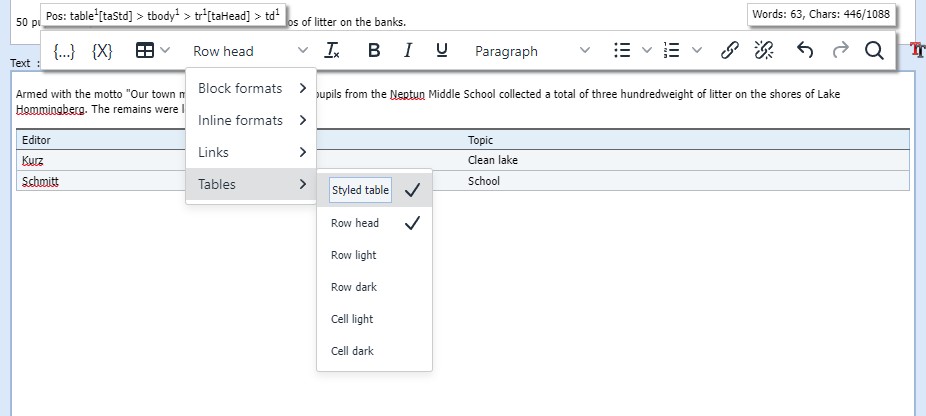
Set or unset formats on table, row or cell
Text components
A text component is a component linked to another cmsWorks document having a positioning information. This component is not really rendered with the text in a document window. Only a generator would know how to render this component. So within the text while editing it's just a placeholder box showing the positioning and the name of the component document:


Context menu on a text component
Activate the context menu on the text component to edit the component.
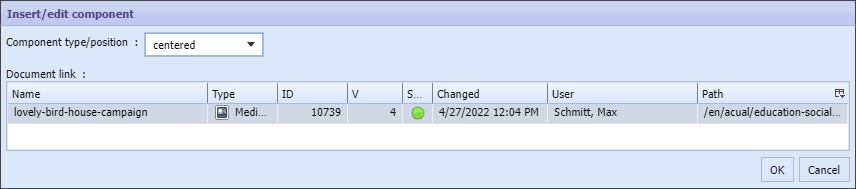
Editing dialog for text components containing positioning and the document reference
Create a new component at the cursor position clicking on
 . Remove a component by selecting and clicking on
 or just simply Del.
Copy and Paste
When text is copied from a website or from other text editors, only some or none of the markup will be copied. The project configuration dictates the available markup options and TinyMCE will cleanup all undefined markup before pasting the text from clipboard. That's why the pasted text maybe looking different from the source.
If it takes a while creating the content it is recommended to store the progress from time to time. Use the shortcut Ctrl+S.