
2.1cmsExplorer
The cmsExplorer shows folders and documents and therefore is basic tool to create, change and to navigate through the content structure.
The cmsExplorer opens with one of the following actions:
- Main menu -> cmsExplorer
- With the icon from the task bar

- With the shortcut Ctrl+Shift+E.
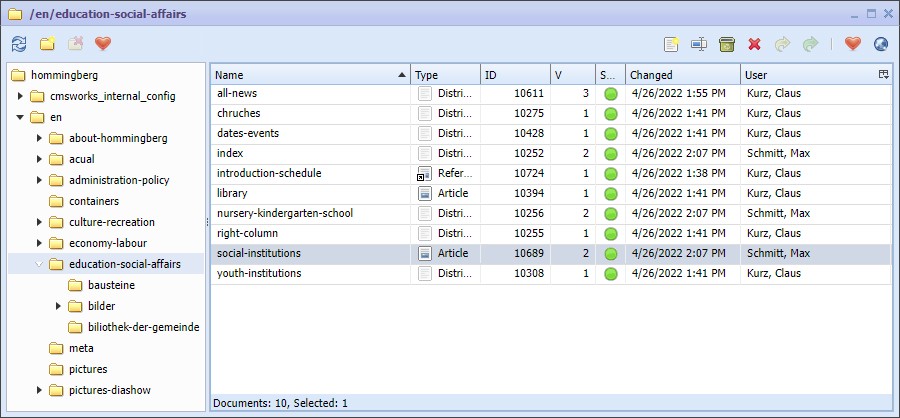
cmsExplorer - The tree of folders an the actions toolbar on the left. Documents of the selected folder and document action toolbar on the right.
Folders can be created, changed, moved or deleted within the cmsExplorer. By selecting a folder, the documents of this folder are loaded and shown on the right. These documents (or new ones) can be created, opened, renamed, deleted, copied, moved, approved and published. Multiple cmsExplorer windows can be opened.
Folder
The folder tree is used to manage documents and to arrange them for various reasons. The structure usually is used as path for URLs. That is why there are rules for folder names out-of-the-box (i.e. always use lower cases, don't use white spaces or special characters). But again, it is possible to adjust these rules on the administration level.
The actions on folders can be executed by the action buttons above the folder tree, from a context menu by right-clicking on the folder or simply by using shortcuts: Click on the folder to select it. Use the arrow keys on the keyboard to change the folder.
The Tab key will switch the focus from the folder tree to the document list and vice versa.
After opening a new cmsExplorer window the folder tree is focused. Now the folders can also be selected by typing the leading characters.
With a selected folder the following actions are available:
 | Alt+N | New folder | Creates a new sub folder |
 | F2 | Rename folder | |
 | Del | Delete folder | Removes the folder only if no subfolders and documents are left |
 | Ctrl+C | Copy | Copy the folder into clipboard |
 | Ctrl+X | Cut | "Cut" the folder from its origin place and prepare a folder-move |
 | Ctrl+V | Insert | Move a formerly cut folder or insert/move documents from clipboard |
 | Favor | Remember this folder in the Favorites |
Actions on folders in the cmsExplorer window
The visibility of folders can be managed by the privilege management. That is why some folders are not visible or some actions like rename, create or delete are not active if your privileges do not allow to do so on such folders.
Documents
On the right of the cmsExplorer window the documents of the selected folder are listed in a table view. The following information about the documents are shown:
- Name
- Document type
- ID the unique number identifying this document
- Number of the current Version
- State
- Last changed (time)
- User of the latest change
The following states are possible:
-
 - published - an online generator uses this version of the document
 -
 - approved - the document is ready to be published
 -
 - edited - the document was changed but is still not approved for publication
 -
 - editing - a user is working on this document right now
The presentation of documents is table like. Klicking on the header of a column will order the list of documents by the so-klicked attribute. This is sometimes useful for finding the latest changed document or to find the user who recently changed a document.
The actions on documents can be executed by the action buttons above the document list or from a context menu (and even by using the approriate shortcuts).
And in case the document panel is selected: Selecting a document may been by clicking on the very document or using the arrow keys on the keyboard. A document then is opened with a double click on it or, in case the document is focused, by pressing Enter.
If you want to select multiple documents use
- Ctrl+Click - to add or remove single documents of a selection
- Shift+Click - to expand the list of already selected documents (i.e. klick the third, then the fifth document to select the three documents)
- Ctrl+A - to select all documents
With the selected documents the following (icon click / shortcuts) actions are available:
 | Enter | Open | Open the document window or put the already opened document window up front |
| Favor | Add the document to the users favorites | |
| cmsExplorer | Open a new cmsExplorer window selecting the document | |
 | Preview | Open a new browser window with the preview of the website | |
 | Alt+N | New document | Create a new document |
| F2 | Rename | Rename the document |
 | Del | Delete latest version | Delete the latest version and activate the version before |
 | Alt+Del | Destroy | Delete all versions |
| Ctrl+C | Copy | Copy the document into the clipboard |
| Ctrl+X | Cut | Prepare a move to another folder |
| Ctrl+V | Paste | Move or copy the document from clipboard |
 | Approve | Approve the document for publication | |
 | Publish | Publish the document and maybe all approved referenced documents |
Actions with documents in the cmsExplorer
When creating a new document a new unique document ID is used. You have to pick the document type which cannot be changed afterwards.
Drag & Drop
The cmsExplorer supports "Drag & Drop". As example, select a folder with a mouse click and drag it into another folder to move the folder and all its contents, meaning to move all subfolders and all documents within (you will have to commit this action on the upcoming dialog).
Drag a single document (or a selection of documents) to move these documents to a target folder.
If you press Ctrl or Alt before dropping the mouse, the cursor shows a "+" which means a change from "moving this document" to "make a copy of this document" in the destination folder.
You may even drag and drop selected documents / folders between two open cmsWorks-windows at all.