
3.1Document search
The document search helps to find documents and contents and supports the document management. All documents can be located with the cmsExplorer in general but finding a document using a search key is sometimes way faster.
Only the content of the latest versions of documents is used for the internal search.
Open the search window with one of the following ways:
- Main menu -> Search
- Taskbar icon

- Taskbar search input field - press Enter after input of the search key
- Shortcut Ctrl+Shift+S
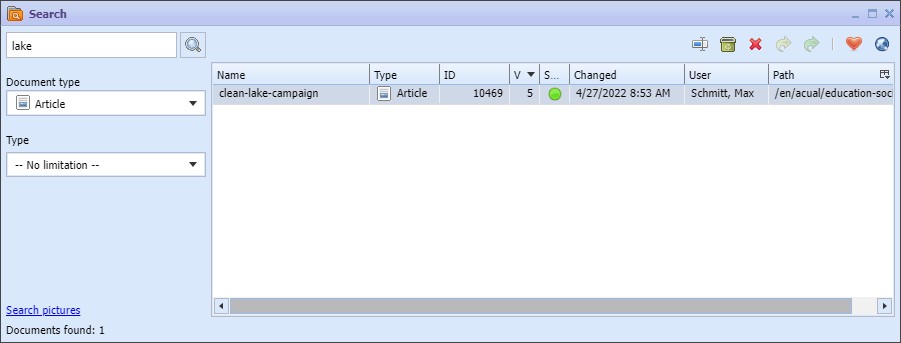
The search window contains on the left input elements for a search key and several filtering options. The search results appear on the right in the document list view.
In the search input field the following types of search keys are recognized:
- Words - Finds documents that contain all of this words (fully) in the document fields or in the name.
- URL - Finds the document to an online URL or to a preview URL .
- DocumentID - Opens directly the document with this ID.
- Number in combination with a document type - Finds documents that contain this number in the text or the name
The dropdown field Document state restricts the search for documents only of the selected state (edited/approved/published).
The dropdown field Document type restricts the search for documents of the selected type. If choosing a document type further restriction options (for example the link type of the navigation document) which are relevant for this document type appear.
With the fields From date and To date the search can be restricted to documents that have been changed before or after a timestamp or in combination in a time range.
After having set the research criteria the search can be started by the following actions:
- Cursor stays in the search slot: Enter
- Click on the button
The document list shows the found documents. Documents can be found in different folders because of that the column path is added. Apart from that the representations and means of action are almost identical with the ones in the cmsExplorer. It`s not possible to add something to this list because it`s a search result. Therefore there is no paste and drop function.
Document types can be hidden by the editors desktop configuration for various reasons. If a document type is hidden no new documents of this type can be created in the editors desktop. But with activating the option Reveal hidden types those documents can be found in the search window.