
2.3.5Picture editing
A picture of the JPG format can be uploaded into a media field and can be edited in cmsWorks desktop. Using the action
 Edit the picture editor dialog opens.
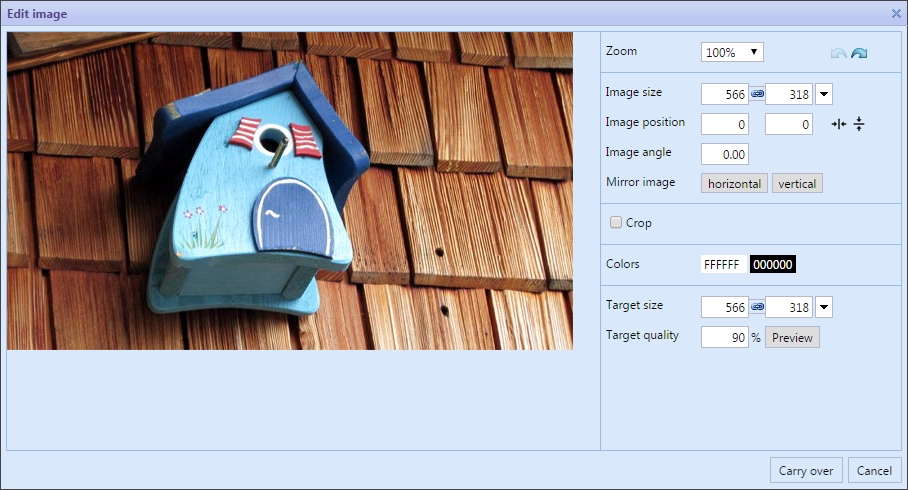
Picture editing for JPG-Pictures
Every input field and every button shows a tooltip with additional information.
Zoom
If the zoom is set to a value more than 100% the picture working area is magnified. That is to work more precisely especially when cutting. But the zoom factor doesn't affect the size of the stored picture.
Picture size
The values of the picture size is displayed in the fields for width and height. Changing these values affects the picture directly. If the button
 Keep aspect ratio is active both values are changed.
Beside the size fields is a dropdown containing some predefined sizes recommended for the project.
Picture position
The position of the picture on the working area is presented width the fields Top and Left. Changing these values affects the position of the picture directly. You may also use the mouse to drag the picture observing the instant changes of the position values.
Beside the position fields are the buttons
 Center image horizontal and
 Center image vertical for centering the picture on the working area.
Selectors
After moving the picture for the first time the selectors come into view. With these you may resize the picture. An additional selector on top of the picture let you rotate it.
Disable the button
Keep aspect ratio and on the edges of the picture more selectors will appear.
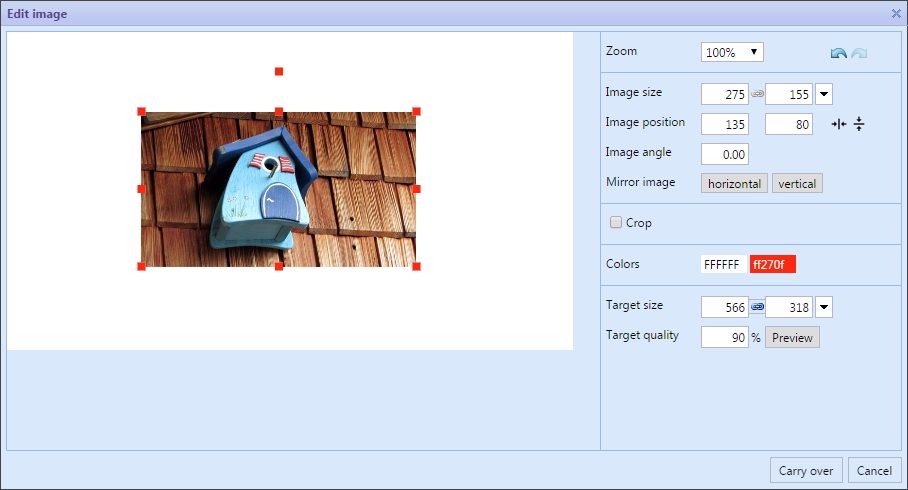
After moving the picture the selectors are visible. Use the second color field to change the color of these selectors.
Rotation
The field rotation shows the value of the picture rotation and lets you change it more precise.
Mirror image
The picture may be mirrored with the buttons horizontal or vertical.
Crop
The checkbox Crop activates the cutting rectangle on the picture as well as the according input fields.
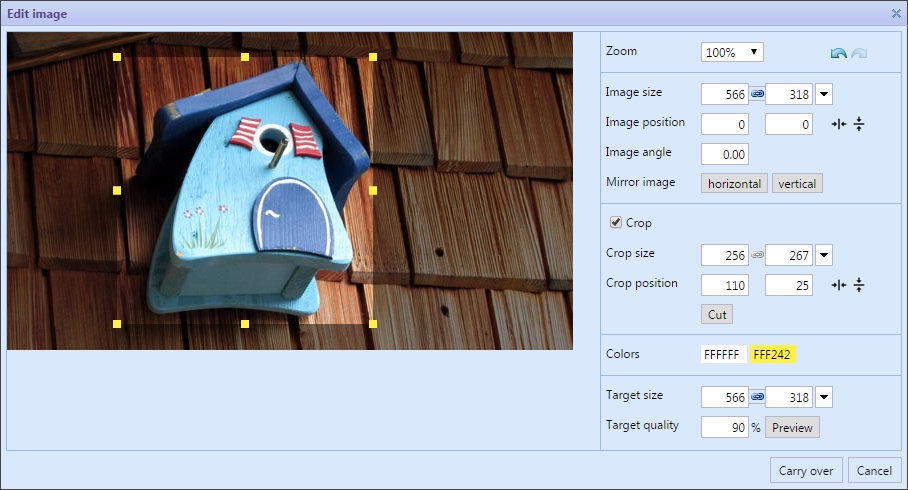
Crop is active in picture editor dialog
With the activated checkbox crop the cutting rectangle including its selectors appears on the picture. Pulling these selectors changes the size and position of the cutting rectangle. The according input fields show the values and work much like the picture positioning and sizing input fields.
Colors
The left input field changes the background color behind the picture. The next one changes the colors of the selectors.
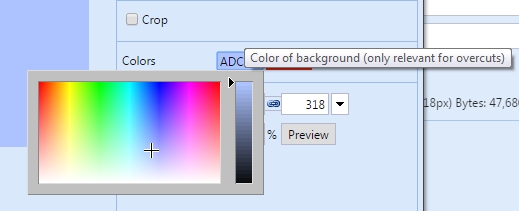
Choose colors for background and selectors
Target size
The picture positioned on the background will be the picture that is stored. So the size of the background is the size the picture will finally be.
The fields Target width and Target height work as the fields for picture size.
Picture quality
The picture format JPG is a compressed picture format. With a lower quality value the picture will need much less storage space and of course traffic costs especially if using the picture on a website. But the loss of quality must be checked manually using the Preview button.
Undo the last change, Redo the next change
Every action of resizing, movement, crop or color change may be undone with the button
 Undo the last change or redone with the button
 Redo the next change.
Shortcuts
Using the keys Up and Down the values of the focused field may be increased or decreased.